




Quick Summary:
- New apps and updates must target Android 16 (API level 36). The August 31, 2026 deadline has passed.
- Existing apps need API level 35 or higher to stay visible to new users on newer devices.
- You can still request an extension through Play Console until November 1, 2026.
- Apps that miss the target disappear for new users on newer phones. Current users keep the app.
- To comply, update your tools, set compileSdk and targetSdk to 36, audit dependencies, and test on Android 16.
Target API level requirements decide whether your Android app stays visible on Google Play. Google raises the minimum every year. The rule covers new apps and every update you submit.
But you also need to consider the 2026 release schedule. The August 31, 2026, deadline has already passed. Applications with the latest modifications should support Android 16 (API level 36). Apps on the market should support Android 15 (API level 35). Developers can extend their deadlines until November 1, 2026.
The Android Developers Guide on target API level requirements clearly outlines the cost of delay. Apps that fail to update become invisible on newer devices and can no longer receive updates. Fragmentation increases the stakes. An industry analysis estimates that 26 percent of global devices are using Android 15. Billions of devices run older versions. The target API is how Google manages them.
This guide covers the current rules, the deadlines, and the exact steps to comply. For hands-on help, an experienced Android app development company can audit your build and handle the migration.
What Are Target API Level Requirements for Google Play?
Every Android app declares a targetSdkVersion in its build configuration. This number tells Android which platform version you built and tested the app for. Google Play reads that value and compares it with its policy. The Play Console Help page lists the current target API level requirements for each device type.
Three settings often get mixed up. Here is how they differ.
| Setting | What It Controls | Example |
| minSdkVersion | The oldest Android version that can install your app | 26 (Android 8.0) |
| targetSdkVersion | The Android version your app was tested for. Google Play policy checks this value | 36 (Android 16) |
| compileSdkVersion | The SDK your code compiles against | 36 (Android 16) |
A high target API level does not block older phones. Your minSdkVersion still decides which phones can install the app. The target level only changes how Android treats your app at runtime.
Android API Levels at a Glance
The Android version history lists every release. This table covers the versions that matter for the current policy.
| Android Version | API Level | Status / Requirement |
| Android 12 | 31 | Below the bar. Apps lose reach on newer devices |
| Android 13 | 33 | Below the bar for phones |
| Android 14 | 34 | Below the bar for phones. Still valid for Android TV and XR |
| Android 15 | 35 | Minimum for existing apps |
| Android 16 | 36 | Required for new apps and updates |
Current Google Play Target API Level Requirements for 2026
The policy changes by device type. Phone and tablet apps face the strictest rule. Here are the current Google Play Store minimum API level requirements:
| Platform | New Apps API Level Requirements | Existing Apps / Updates API Level Requirements |
| Phone and tablet | API 36 or higher | API 35 or higher |
| Wear OS | API 35 or higher | API 34 or higher |
| Android TV | API 34 or higher | API 33 or higher |
| Android XR | API 34 or higher | API 34 or higher |
| Android Automotive OS | API 35 or higher | API 32 or higher |
Permanently private apps for a single organization are exempt. That covers internal tools you never plan to publish publicly.
The Google Android Update Deadline and Extension
The first deadline was August 31, 2026, and it has passed. Google Play now rejects new apps and updates that target below API 36 on phones and tablets. Wear OS and Android Automotive OS apps need API 35, and Android TV and Android XR apps need API 34.
Extensions are not automatic. Google grants them on request, and only to apps affected by the new requirement. Those apps receive an extension form link through Play Console notifications. Approval moves your deadline to November 1, 2026.
To request one, open Policy status in Play Console, select the warning for your app, and use the extension link on the details page.
Treat the extension as a short runway. You still need to ship an update that targets API 36 by November 1, 2026. Start the migration now.
What Happens If Your App Misses the Requirement
Existing users keep your app. They can still reinstall it and use it on any supported version. New users on devices running a newer Android version cannot find or install it. Google Play tells them the app was made for an older version of Android.
That gap hurts downloads quickly, because most new phones ship with a recent Android release. You also cannot publish updates until you meet the new target API level requirements.
Why Google Keeps Raising the Target API Level
Android operating system updates modify the permissions system, restrict background app operation, and add security measures. Users can access these only after they update their application’s target level. An application targeting an earlier level will follow the earlier policy even when run on a newer device.
Android 16 shows the pattern. It hardens how apps handle intents. It also requires dynamically loaded code to be read-only before it runs. You can read the full list in the Android 16 behavior changes documentation.
Meeting the target API level requirements pays off in four ways:
- Enhanced security. Your application benefits from the latest platform security features.
- Increased coverage. Your application listing remains visible on existing devices.
- More recent APIs. You get to take advantage of new platform features without any hacks.
- Easier reviews. Policy notifications will not hold up your releases.
What Changes When You Raise the Target API Level
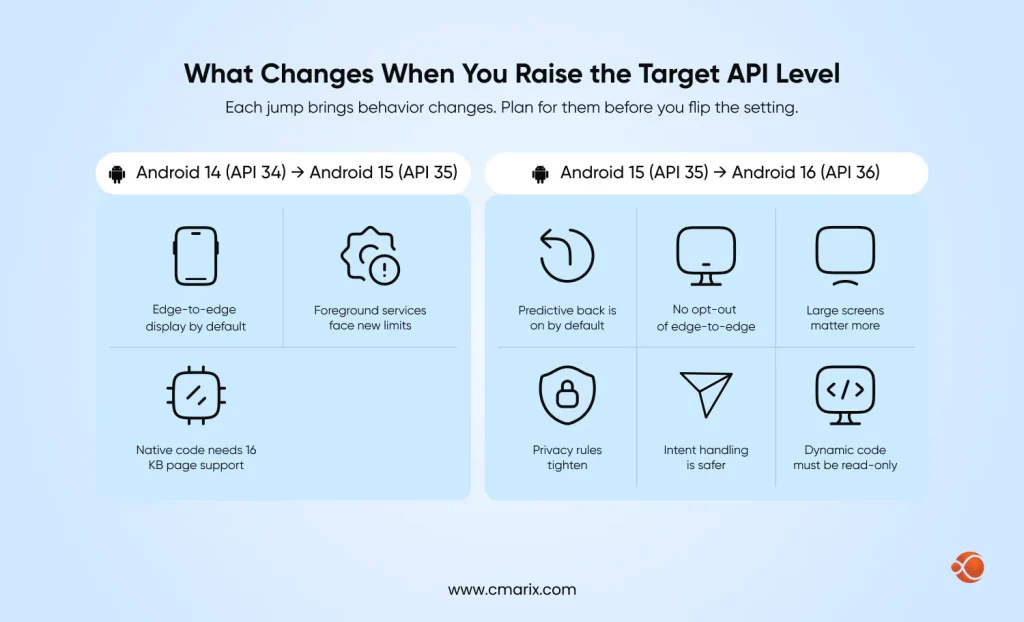
Each jump brings behavior changes. Plan for them before you flip the setting.
Moving From Android 14 (API 34) to Android 15 (API 35)
- Edge-to-edge display is the default. Your layouts must handle system bars and display cutouts.
- Foreground services face new limits. Boot receivers can no longer start several service types, and data sync services now time out.
- Native code needs 16 KB page support. Libraries built for older memory page sizes can break.
Moving From Android 15 (API 35) to Android 16 (API 36)
- Predictive back is on by default. Apps that intercept the back button should move to the supported back APIs.
- You cannot opt out of edge-to-edge. Check every screen for overlapping content.
- Large screens matter more. Test tablets and foldables, since layouts must adapt.
- Privacy rules tighten. Photo and video access, local network access, and Health Connect permissions all changed.
- Intent handling is safer. Review how your app launches and receives intents.
- Dynamic code must be read-only. Mark any loaded DEX or native files accordingly.
These items are only a start. Read the full Android 16 behavior changes before you set your target level, and test the app on real devices.
How to Update the Target SDK Version in Android Studio
Follow these steps for a clean upgrade.
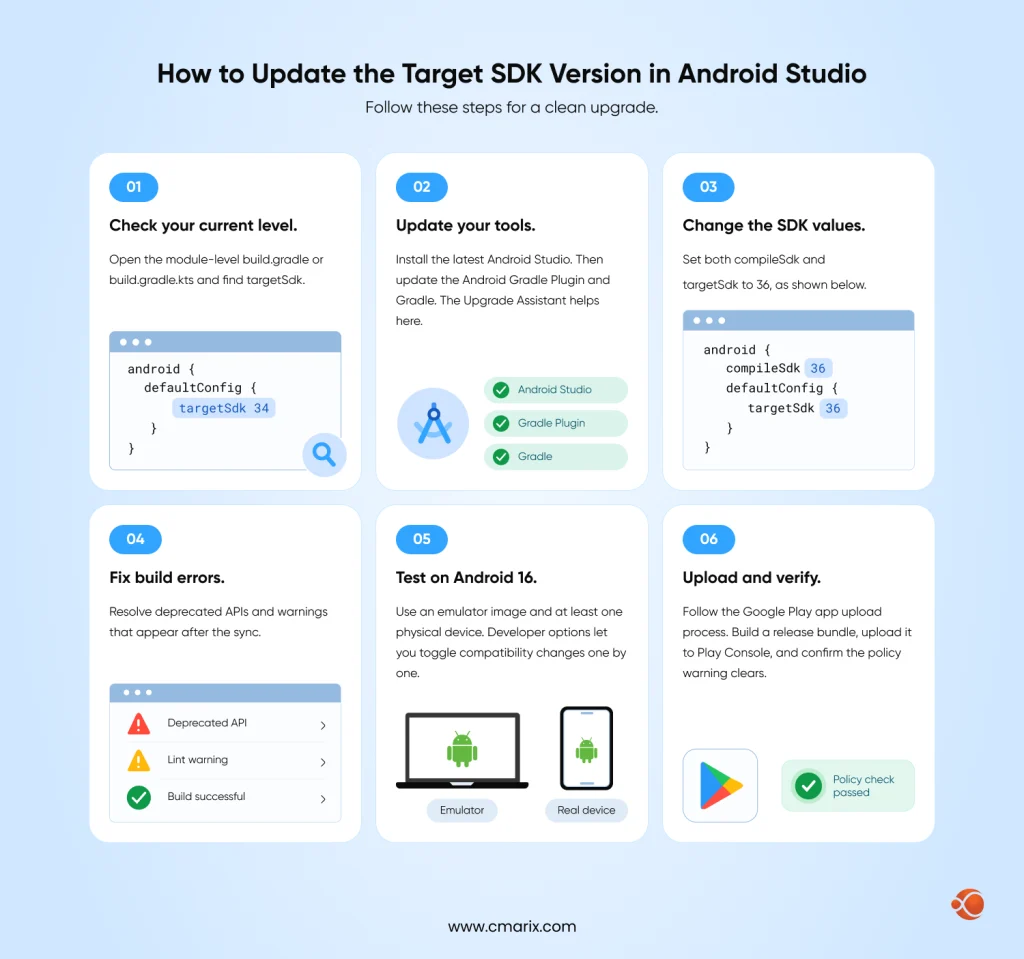
- Check your current level. Open the module-level build.gradle or build.gradle.kts file and find targetSdk.
- Update your tools. Install the latest Android Studio. Then update the Android Gradle Plugin and Gradle. The Upgrade Assistant helps here.
- Change the SDK values. Set both compileSdk and targetSdk to 36, as shown below.
- Fix build errors. Resolve deprecated APIs and warnings that appear after the sync.
- Test on Android 16. Use an emulator image and at least one physical device. Developer options let you toggle compatibility changes one by one.
- Upload and verify. Follow the Google Play app upload process. Build a release bundle, upload it to Play Console, and confirm the policy warning clears.
If the warning stays after you upload, old bundles in testing tracks are often the cause. Median’s guide walks through removing them. Google also publishes an official target SDK migration guide.
Update your target SDK, fix compatibility issues, and prepare for Google Play compliance with CMARIX.
How to Audit Third-Party Dependencies
Your code is only half of the job. Ads, analytics, payment, and push libraries can block the upgrade.
| Step | What to Do | Why It Matters |
| List everything | Run ./gradlew app:dependencies to see the full dependency tree | Reveals libraries that may block the upgrade |
| Read release notes | Confirm each library supports API 36 | Prevents compatibility issues |
| Update outdated SDKs | Replace libraries that are no longer maintained | Reduces upgrade and security risks |
| Check the Google Play SDK Index | Review SDKs flagged with known issues | Identifies problematic third-party dependencies |
| Run lint | Use ./gradlew lint to catch target-related warnings | Finds potential issues before release |
| Inspect the merged manifest | Check permissions and components added by libraries | Catches unexpected library behavior |
| Automate updates | Use tools like Dependabot or Renovate | Keeps dependency versions current |
Best Practices for Google Play Compliance
Teams that never panic about deadlines follow a few habits:
- Upgrade every spring. Don’t wait until the August deadline to start.
- Test beta releases early. Catch compatibility issues early, while you still have plenty of time to fix them.
- Keep CI on the latest emulator. This helps your automated tests catch regressions sooner.
- Implement staged rollouts. Start with a small number of users and monitor Android vitals first.
- Adopt a release process. A solid Google Play Store publication checklist will avoid last-minute surprises or rejection.
- Perform a practice upload. Rehearse on the internal testing track to ensure the upload goes smoothly.
- Anticipate maintenance costs. Plan yearly Android migrations in your maintenance budget.
Risks of Ignoring the Target API Level
Skipping the update costs more than the upgrade itself.
- Reduced visibility. New users will not see your app as it exists on their device.
- Blocked releases. Google Play rejects updates that miss the target level.
- Security gaps. Your app runs with older and weaker protections.
- Higher late costs. A rushed migration across several versions takes longer, breaks more, and inflates your Android app development cost.
- Lower trust. Users notice when an app feels dated or unstable.
We identify upgrade risks, update dependencies, and test your app before release.
Why Hire Professionals for Target API Level Upgrades
A migration touches code, libraries, testing, and store settings. Mistakes can cause crashes or rejected builds. Specialists reduce that risk.
You need to hire professional Android app developers for:
- Compliance audits. An expert finds every blocker before you submit.
- Safe migrations. Developers handle behavior changes and dependency conflicts.
- Device testing. QA covers phones, tablets, and foldables.
- Ongoing maintenance. The team tracks each new Android release for you.
Why Choose CMARIX for Your Target API Level Upgrade
A target API upgrade touches your code, libraries, testing, and store settings. CMARIX handles all four, so your live app keeps running while you move to API 36.
When you choose CMARIX for Android app development, you get access to a team with:
| 240+ | Professionals |
| 16+ | Years of experience |
| 2000+ | Projects delivered |
| 46+ | Countries served |
| 40+ | Industries, including Fortune 500 clients |
| 4.8/5 | Clutch rating (5/5 on GoodFirms and TopDevelopers) |
Here is how that experience applies to a Google Play compliance upgrade:
- Migration and compliance audit. Our Android app development team raises compileSdk and targetSdk to 36, then fixes the behavior changes that follow, such as edge-to-edge layouts, predictive back, and foreground service limits.
- Dependency cleanup. Outdated ads, analytics, and payment SDKs often block the upgrade. Our app modernization services replace or update them.
- Real-device testing. Mobile app testing covers phones, tablets, and foldables on Android 16 before you upload.
- Ongoing compliance. Support and maintenance keeps your app current with each yearly Google Play deadline.
- Extra capacity. If your team needs more hands, you can hire Android developers or Kotlin developers on a dedicated basis.
- Cross-platform apps. Flutter and React Native apps need the same target update, and the team handles those too.
Conclusion
Target API level requirements decide whether your app can ship updates and stay visible to new users. The August 31, 2026 deadline has passed. New phone and tablet apps and every update must now target API 36 (Android 16). Existing apps you don’t update need at least API 35 to stay visible to new users on newer devices. If your app has a policy warning, you can request an extension until November 1, 2026 (assuming you are reading this blog before the extension date). To comply, set compileSdk and targetSdk to 36, audit your dependencies, and test on Android 16.
FAQs About Google Play Target API Level Requirements
What are the current target API level requirements for Google Play?
New phone and tablet apps and updates must target API level 36 (Android 16) or higher. Existing apps must target API level 35 or higher to remain available to new users on newer devices. Wear OS, Android TV, Android XR, and Android Automotive OS have lower thresholds.
What is the difference between minSdkVersion and targetSdkVersion?
minSdkVersion sets the oldest Android version that can install your app. targetSdkVersion tells Android which version you tested against. Google Play policy checks the target value.
What is the Google Android update deadline for targeting recent SDK configurations?
The deadline was August 31, 2026. You can still request an extension until November 1, 2026. Only apps with a policy warning receive the extension form.
How do I check the current Android API level of my running application project?
Open your module-level Gradle file and read the targetSdk value. For a built APK, run aapt2 dump badging and look for targetSdkVersion. Play Console also shows the level for published apps.
What happens to existing apps if they fail to meet Google Play Store app publishing requirements in 2026?
The app will remain in the store but will be invisible to new users on newer versions of Android. Existing users can keep the app and even reinstall it. For any updates, the targeted API level should be 36.
How does compliance with the Google Play target API level requirements in 2026 protect user security?
Higher targets will allow new platform security capabilities. Android 16 increases security through enhanced intent handling, stricter permissions, and read-only code after loading. The older targets have fewer restrictions.
Which specific features change when upgrading an app from Android 14 (API level 34) to API level 35?
Default edge-to-edge display is achieved. Foreground processes will have new restrictions, like data synchronization timeouts. The native libraries must be capable of handling 16KB pages of memory.
How can developers request an extension for the annual target SDK 36 deadline?
Set your app’s Open Policy status in Play Console and then click on the warning that appears for your app. The details page includes a link to the extension form. Fill out and submit the extension form before November 1, 2026.
What are the configuration steps to update the target SDK version inside Android Studio build scripts?
Update Android Studio, the Android Gradle Plugin, and Gradle. Set compileSdk and targetSdk to 36 in your module build file. Sync the project, fix errors, and test on Android 16.
How do you successfully audit third-party dependencies to ensure full Android target SDK requirements compliance?
List your dependency tree with Gradle and read each library’s release notes. Update or replace anything without API 36 support. Check the Google Play SDK Index, run lint, and review the merged manifest.